SpreadsheetShoppe

  • Home
  • Downloads
    • Accounting Tools
    • Add-Ins
    • Business Tools
    • Calendars & Timelines
    • Graphs & Charts Templates
    • Lists Templates>
      • Wedding Checklist
    • Personal Finance
    • Project Management
    • Shortcut Keys
    • Stock Options
  • Useful Resources
  • Feedback/Upload
  • Blog

Excel's Offset Function

 +1 This Page

What is the Offset Function?

The offset function is a powerful excel formula, the purpose of which is to return a single value or a range of values that is a given number of rows or columns from a specified reference (i.e. a specific cell - your starting point).  This function is particularly useful when we don't know the exact location or range needed (i.e., when the output needs to be dynamic or is dependent on other variables).  This will start to make more sense as we go through examples.  

The offset Function is great for dynamic sums, implementing a scroll bar into a chart, dynamic charts, dashboards, named ranges, use with other functions such as the Match function, the list goes on.

The Basics

The formula is =Offset(Reference,Rows,Cols,Height,Width)
  • Reference - this is where you want to base the offset, the starting location.  It can be a single cell or a range of cells.  There must be a value here, this is the only part of the offset function that requires a value.
  • Rows - is the number of rows (up or down) you want the upper-left cell of the result to refer to.  A positive number moves down, negative moves up.  If rows do not need to change you can leave this blank or use a "0".
  • Cols - is the number of columns (left or right) you want the upper-left cell of the result to refer to.  A positive number moves right, negative moves left.  If cols do not need to change you can leave this blank or use a "0".
  • Height - the number of rows you want to be in the result, by leaving this unused the result will be the same height as the original reference.  If your not using either height or width the rest of the formula can be left blank or you can use "0".
  • Width - the number of columns you want to be in the result, by leaving this unused the result will be the same width as the original reference. If your not using either height or width the rest of the formula can be left blank or you can use "0".

Examples of the Offset Function

Each example is included within a tab of the download below - download the file to see how it the function works and make modifications...the best way to learn.  The first 5 examples are intended only to demonstrate what the offset function does, not best practices.  As a best practice, formulas should be made as dynamic as possible - they shouldn't need to be updated frequently.  See the example in Tab 6 for a dynamic use of this formula.  

Offset using Rows only - Tab 1

Picture
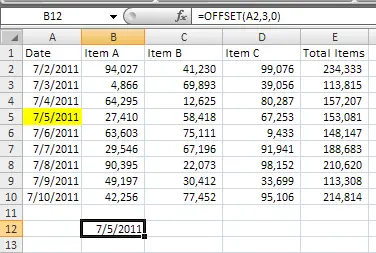
In this example we start the offset formula in cell A2 and we want to pull the value of the 3rd point down, within the same column.  Note, notice how there are no other values entered for Height, or Width - this formula could have also been written as =OFFSET(A2,3,0,0,0)

Offset using Cols only - Tab 2

Picture
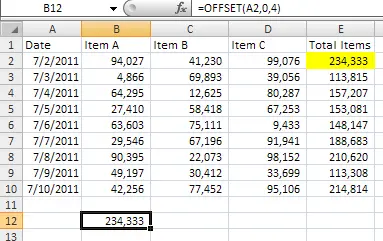
In this example we're starting at the same place as Tab 1, but we're wanting to pull the value from 4 places to the right on the same row.  Note, in this formula we put a "0" in the Row section, however, we could have written the formula as =OFFSET(A2,,4)

Offset using Height only - Tab 3

Picture
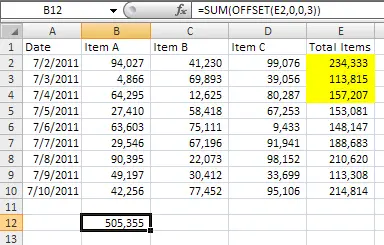
Now that were moving on to Height and Width, we're going to add the SUM function in order to demonstrate the result.  In this case we wanted to sum the first 3 days, using cell E2 as our starting point we left both the ROW, and COLS as "0".  Note this formula could have also been written as =SUM(OFFSET(E2,,,3)).  Notice the difference from the first two examples?  The range of cells in the output includes the first cell (i.e., the REFERENCE), where as a "1" in the first two examples would be 1 away from the REF.

Offset using Width only - Tab 4

Picture
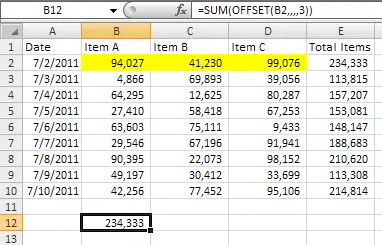
Using the same theory as in the previous example except this time we're summing across columns. 

Offset using a Range for the Reference - Tab 5

Picture
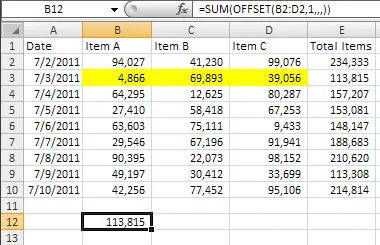
This example is very similar to Tab 4; however, it doesn't use the WIDTH attribute.  Because the REFERENCE includes a range, we only have to specify the ROWS and COLS.

Offset Function made Dynamic - Tab 6

Picture
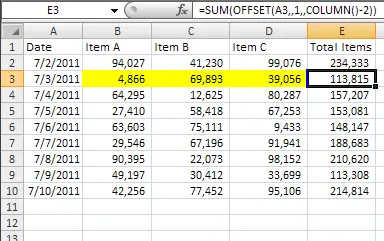
Okay, now that we've gone over some basis it's time to see an example of how we could really get some benefit out of this function.  In this example we replace the basic SUM function (i.e., = SUM(B3:D3)) with the formula seen to the left.  This formula will allow you to add and delete entire columns, lets say Item C goes away or we add Item D, without having to update the formula.  Here's how it works - because we know we'll only want to sum up anything that's between the Date and the actual sum we started the formula referenced on the date and told it to move 1 column to the left "=OFFSET(A3,,1" - this puts us in B3.  In order to get it to go to the end, we used the COLUMN function, which returns a value relative to the column were in (in this case =COLUMN() would return a 5 - A = 1, B = 2, etc).  You can see we're subtracting 2 after the =COLUMN(), this is because we don't want it to worry about Column A (it has dates) and we don't want it to worry about Column E (that would create a circular reference), so we're subtracting 2 columns.  So, this formula reads as follows, sum up the range starting at cell B3 using a width of 3.

Download this file to work with the functions outlined above

Offset Examples
File Size: 96 kb
File Type: xls
Download File


Other Uses of the Offset Function Found on this Site

We've used the offset function in some of the templates uploaded on this website.  If you would like to download the excel templates and see some more real world uses of this fantastic function please click on the links below, or click here to see the offset formula used as a dynamic print range.
Picture

Personal Budget uses Offset for Dynamic Sums

Picture


Timeline with Scroll Bar - the Scroll Bar uses Offset

blog comments powered by Disqus

Microsoft® and Microsoft Excel® and Microsoft Word® are registered trademarks of Microsoft Corporation. SpreadsheetShoppe.com is not associated with Microsoft.