
Install an Excel Add-in with these 5 easy steps. Also, be sure to check out all of our free Excel Add-ins ready to be installed and help you save time.
How to Install Add-ins Excel 2007 and 2010
Step 1
Save the add-in to your computer. You can put this add-in along with your other add-ins in Excel or any location you see fit.
Step 2
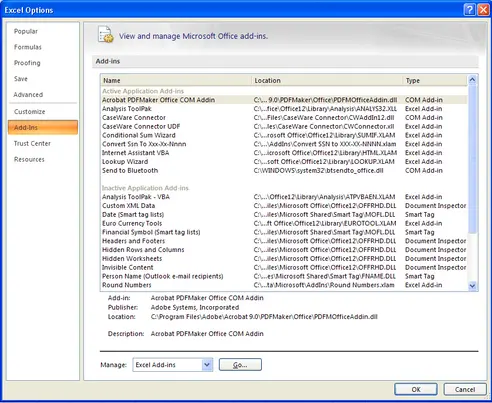
Open Excel and click the Office Button (i.e., window in the upper left had corner) and select Options
The following will open up; go to the ‘Add-Ins’ section:
Step 3
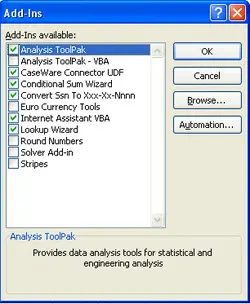
Toward the bottom of the screen, ensure that ‘Excel Add-ins’ is selected in the drop-down box and select ‘Go’. The following will open:
Step 4
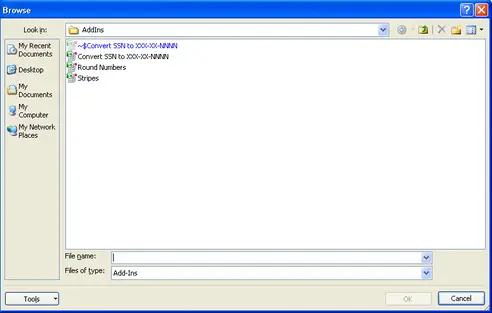
Select ‘Browse…’ and go to the location where you saved the add-in, select it, then choose OK. Note: When you click Browse, your add-in folder opens, so if you saved the file to your add-in folder, you shouldn’t need to browse any further. Also, in 2007 and 2010, once it’s saved to the add-in folder, it should show up in the dialog box in Step 3.
Step 5
Check the box associated with the add-in(s) you want and choose ‘OK’. The add-in will now be functional each time you open up Excel.