
The Gantt Chart found here is designed to work in any version of Excel from 2003 forward. People commonly use Gantt Charts to plan and manage projects. There are several Gantt Chart options available from very simple to quite complex. This chart is somewhere in between. It’s simple in that it’s been built in Excel and most people have a working knowledge of Excel, yet it’s complex in that it’s dynamic and capable of handling changing events. This is the only Gantt Chart available Free in Excel with all of the features included.
Excel Gantt Chart
System Requirements & Download
Gantt Chart Excel Template Download
Download 70.00 KB 28715 downloads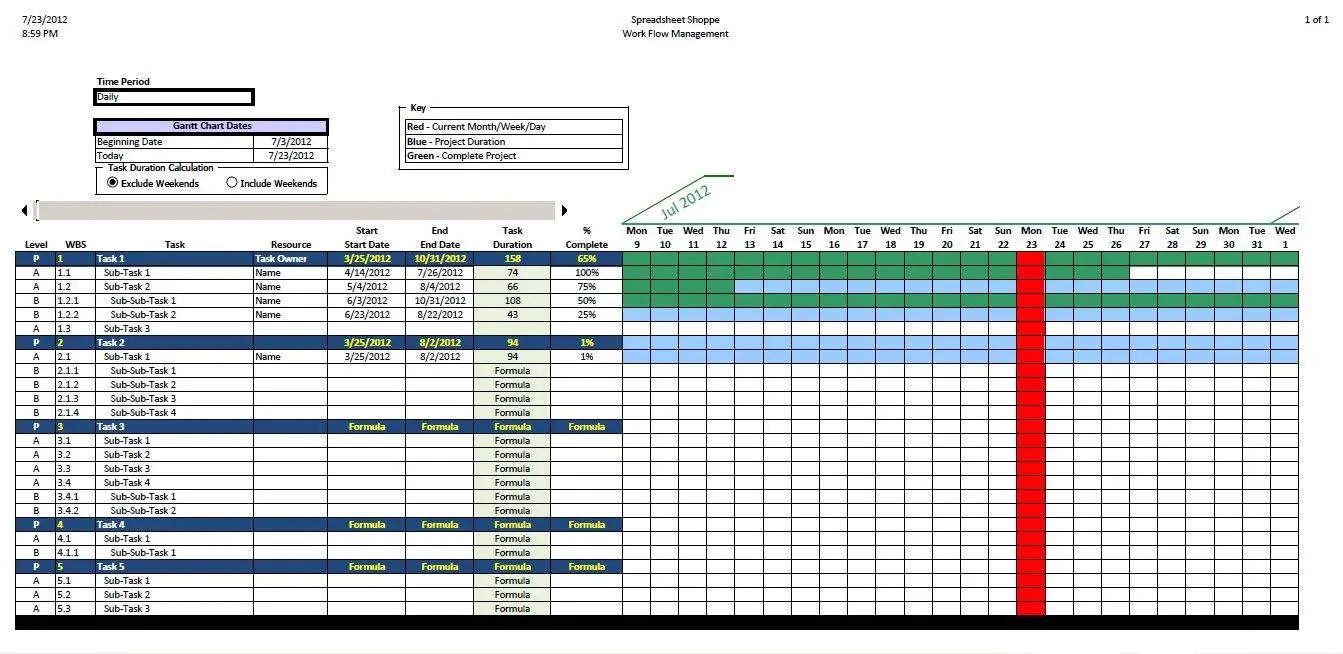
This Gantt Chart is includes the following features:
- Easy to use, little start up time required. It’s based in Excel, a program most people have familiarity with, there’s not alot of time required for knowledge building.
- Ability to look forward at upcoming tasks, or look back at the project history.
- Quickly add or remove tasks.
- It’s dynamic, there are a number of features that allow this Gantt Chart to be dynamic – date ranges, time frame, progress, task duration, current day, dynamic formulas, conditional formatting, WBS numbering etc – we will cover these more below.
How to Use this Gantt Chart
Entering Data - Part 1
Entering Data - Part 2
If additional rows (i.e., sub-tasks) are needed within a given task, simply add the number of rows needed. All formulas can be copied down from another row – the WBS numbering will automatically update. The WBS is dependent on the level chosen, you can choose one of the following:
- P – Primary Task
- A – Sub-Level
- B – Sub-Sub-Level
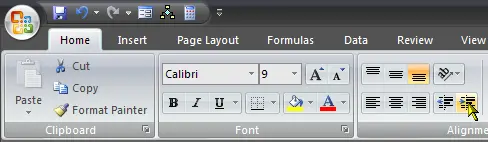
If you like your different sub-levels indented, you can use the indent feature within Excel to do this quickly and accurately throughout the spreadsheet (this cannot be automatically done without adding macros to the workbook, so you’re on your own for this one). You can also copy and paste from a similar cell with the formatting you want.
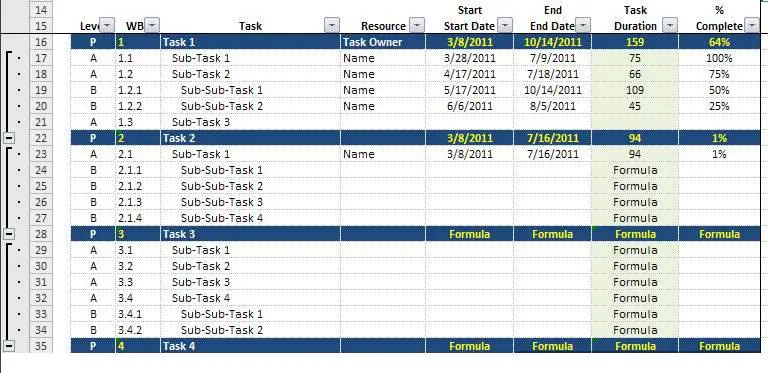
The indent button is under the Home ribbon, as shown in the lower left hand corner of the picture below.
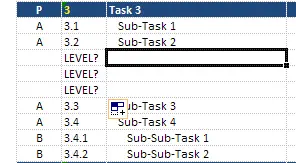
Note, If for some reason there is a problem with the level you’ve selected (or there is no level selected) you’ll get a reminder as shown in the first picture in this step. Simply go back to the first place it says “LEVEL?” and ensure you have the right level selected.
Add a New Primary Task
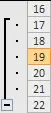
The grouping allows you to expand and collapse primary tasks. You can use the button on the top left side of the spreadsheet to expand collapse all groupings.
Starting at a primary task, select the whole row and a few sub-tasks, and copy rows. Just like this…

Click anywhere you want to put the new primary task and sub-tasks, then select insert copied cells. You can see that all of the formulas, WBS numbering, grouping, etc is updated. The only thing you need to do is update the task specific information. A feature we think meets the definition of very cool!

Updating Percent Complete
The formulas here are dynamic as well, so you won’t have to worry about it picking up data from other tasks.
Scroll Bar - View History / Look into the Future
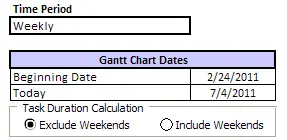
Modify the Time Period